Control Room Mixer
The Control Room Mixer feature designates one Mixer in your PRO system as the engineer's monitoring and talk-back position. This is typically a Virtual Mixer card living inside a PRO Hub, but any compatible Mixer works. Once designated, that Mixer can do two independent things:
- Use as Monitor — instantly mirror any other PRO Mixer's mix into the engineer's Mixer audio with a single click. Switch between performers' mixes without touching their gear.
- Always-on Intercom — keep the engineer's intercom mic transmitting upstream regardless of normal intercom-mute state. Stays on even if PRO Connect is closed or the mixer is moved.
Firmware requirement: Both features require mixer firmware v8.7 or later.
Why use a Control Room Mixer?
A studio engineer running monitor mixes for a band can now hear what each performer is hearing with a simple one-click action in PRO Connect!
Designating a Control Room Mixer
Open Settings. In the Control Room section, click the Mixer dropdown and pick the Mixer you want to designate.
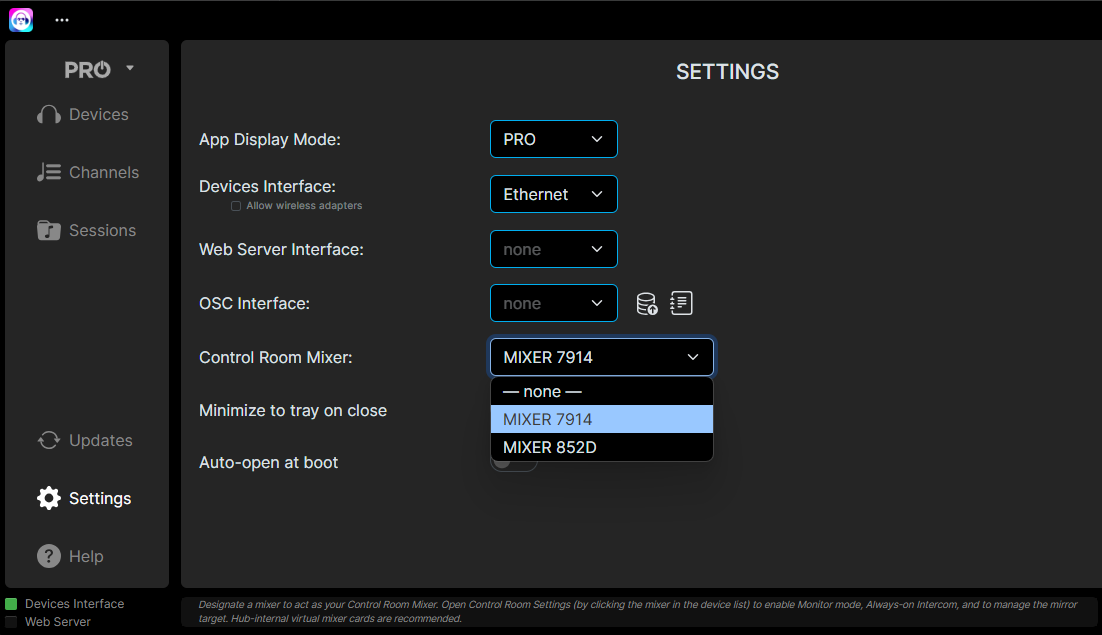
PRO Connect remembers the Mixer you choose across app restarts and even when the mixer goes briefly offline.
To remove the designation, pick — none — from the same dropdown.
To change which mixer is the CR, just pick a different one.
Use as Monitor
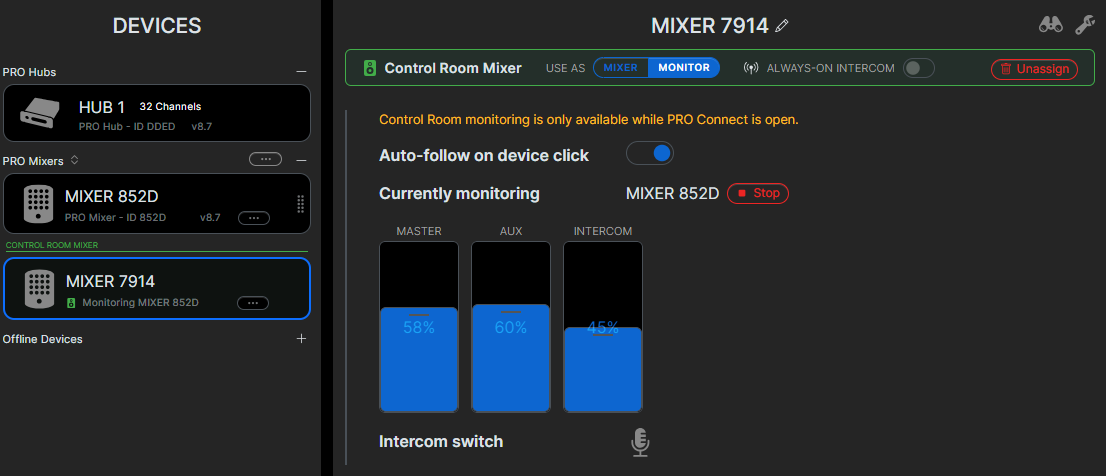
When Use as Monitor is on, the Control Room Mixer can mirror any other PRO mixer's mix into its own audio output. Click a Mixer in the device list — instantly hear their mix.
Toolbar Controls
A status indicator lives in PRO Connect's main toolbar, at the bottom of the screen, showing the current Control Room state at a glance:

| State | Display |
|---|---|
| Monitoring a mixer | Green speaker icon · Monitoring MIXER NAME (or Monitoring GROUP n if the target is in a user group) · red Stop button |
| Idle (no source) | Gray speaker · Idle (no source) · CR audio is silent |
| Monitor off | Dimmed · Monitoring off · feature disabled |
| CR mixer offline | Red Mixer Offline with a dropdown to pick a replacement |
| Target requires v8.7+ | Red speaker · Requires v8.7+ (the mixer you tried to monitor needs a firmware update) |
Silence the Control Room
Click Stop to silence the Control Room and return to idle. Stop is reachable from three places — pick whichever is closest:
- The red Stop button on the toolbar controls.
- A dedicated stop quick-action on the Control Room Mixer's row in the device list.
- The Stop button on the Control Room Mixer's settings page.
Master Volume Sliders
While monitoring is active, the master-volume slider on every Mixer's page controls the Control Room Mixer's master volume — not the monitored Mixer. Other channel-strip controls (per-channel volume, pan, etc.) still affect the Mixer you are monitoring.
Mirror Master Volume, Master Volume Group Sync, and Aux Volume Group Sync are automatically disabled on the Control Room Mixer and cannot be re-enabled while it is selected. This is intentional — mirroring an in-ear monitor mix to control-room speakers at the wrong level can damage the engineer's hearing or speakers.
Control Room Options
Auto-follow on Click
By default, clicking any PRO Mixer in the device list both navigates to that mixer AND starts monitoring it. This makes one-click switching effortless — click the singer's mixer, hear what they hear, click the bass player's mixer, hear that.
If you'd rather pick the monitor target separately from device navigation, turn off Auto-follow on device-list click in Settings. With auto-follow off, the monitor target is chosen from a dropdown on the Control Room Mixer's settings page. Clicking other Mixers in the device list just navigates without changing what you're monitoring.
Always-on Intercom
Always-on Intercom enables the engineer to wire their Mixer to a switch or their console for simple talk-back capability. With it on, the mic is always live in the band's ears without a red blinking light.
Always-on Intercom is saved in the mixer's flash memory. It stays on after PRO Connect is closed, after the computer is shut down, after the mixer is power-cycled, and even if the mixer is physically moved to a different rig.
Always-on Intercom only works when all online PRO Hubs are at firmware v8.7 or later. If any hub is below v8.7, the toggle is disabled until the hub is updated.
Tips and notes
- Sessions don't include Control Room settings. Control Room designation is a fixture of your studio setup, not a per-band thing. Loading a saved session won't change which Mixer is your Control Room.
- Submix creation and edit will always be accomplished on the Control Room Mixer. PRO Connect will transfer the submix back to the monitored Mixer after the creation is complete.
- Aux Input volume is disabled whenever you have always-on intercom enabled. This prevents feedback inside the Control Room.