Waves Soundgrid Card
Overview
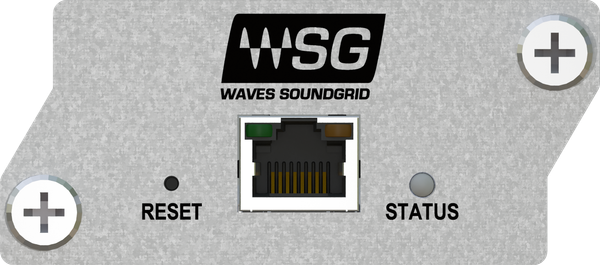
The Hear Back PRO SoundGrid Card for Hear Technologies personal monitor Mixers enables integration with Waves SoundGrid systems via a single Ethernet cable. This provides SoundGrid networking technology for low-latency plugin processing, multitrack recording and playback, and audio networking. The Hear Back PRO SoundGrid Card also features Sync-over-Ethernet for clocking multiple Mixers and performing digital splits.
We suggest that you become familiar with the Waves support site www.waves.com/support, where you'll find an extensive answer base, the latest tech specs, detailed installation guides, software updates, and current information about licensing and registration.
Advantages / Features
- Super-low-latency networking platform for processing, playback, and recording
- SoundGrid-compatible devices and SoundGrid systems connect via a single Cat 5e or Cat 6 Ethernet cable. Compatible with standard computers and switches
- (2) cards can be populated per Hub to allow A/B input/clock switching between (2) banks of 16 channels with FW V2 or V5. All later firmware versions enable the use of a single Waves 32 channel card, allowing the second input to be used as a separate switched signal source.
- ASIO/Core Audio drivers for recording and playback
- Supports sampling rates of 44.1kHz, 48kHz, 88.2kHz, and 96kHz
- 1 built-in port for direct connection
- Provides redundancy and recovery options
- Works with MultiRack SoundGrid, SoundGrid Studio, and eMotion LV1 software for setup and control
Typical Uses
The Hear Back PRO SoundGrid Card can be used in both SoundGrid and Native configurations.
SoundGrid
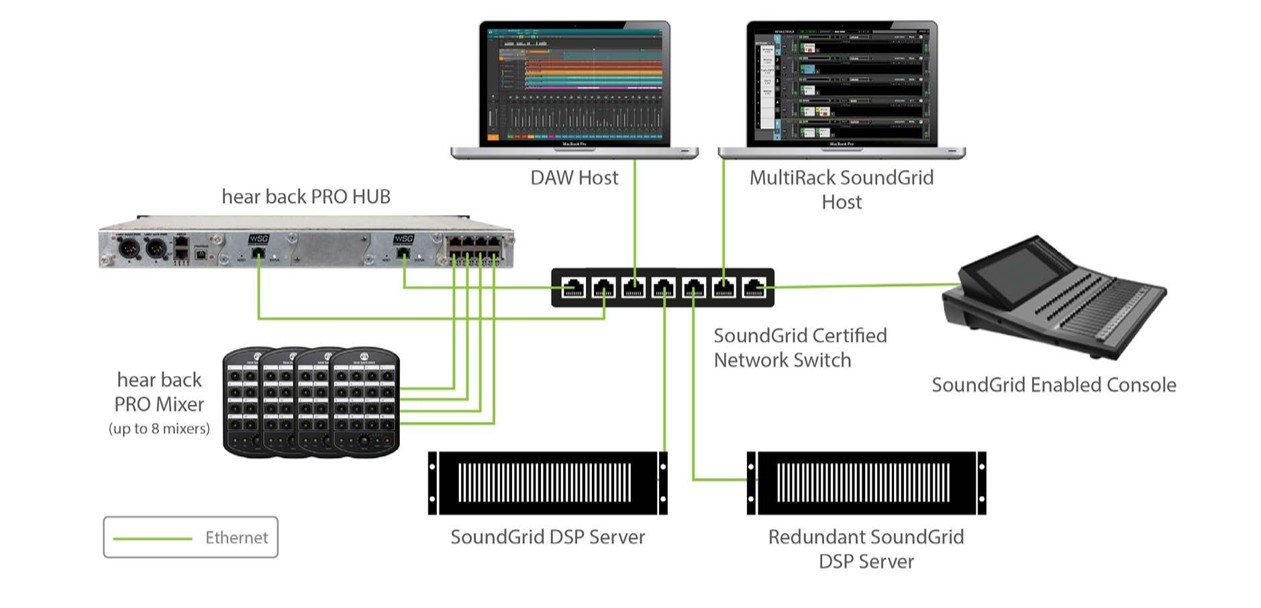
In a SoundGrid configuration, the Hear Back PRO SoundGrid Card connects to a SoundGrid network that has a SoundGrid DSP server. This provides a high plugin count with super-low latency processing. It also enables other networking capabilities, including the option of adding an additional DSP server for backup.
A SoundGrid DSP server is required for SoundGrid configurations.
Native
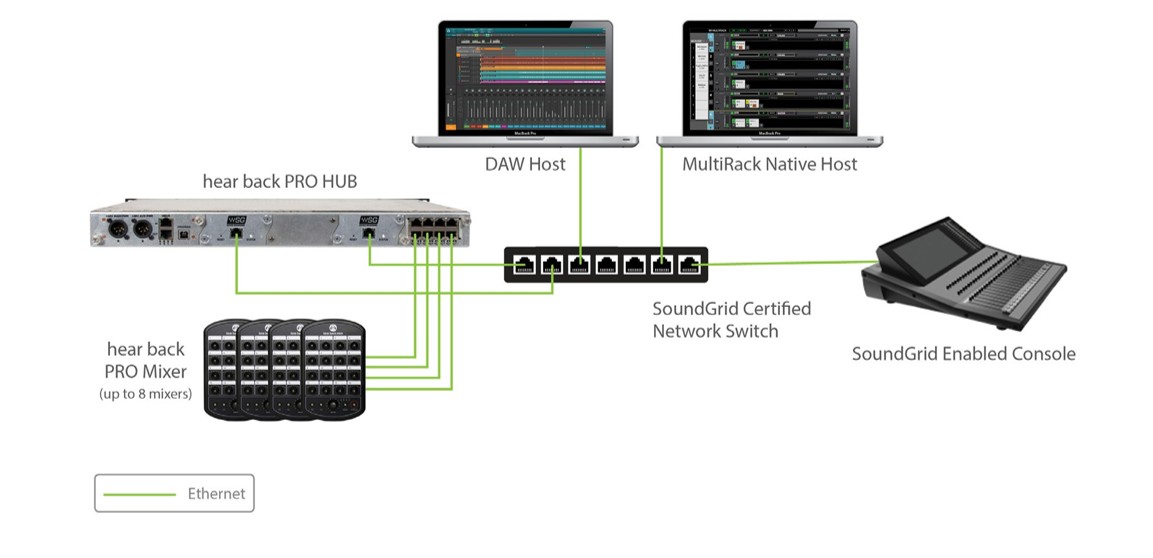
In a Native configuration, the Hear Back PRO SoundGrid Card is used to connect a personal monitor mixer to the SoundGrid ASIO/Core Audio driver for plugin processing and/or DAW playback/recording. Since the Native configuration utilizes the computer's CPU to power plugin processing, plugin count and overall system latency depend on the computer's CPU and sound driver capabilities.
A SoundGrid DSP server is not required for Native configurations.
Native/SoundGrid Comparison Table
| Features | Native | SoundGrid |
|---|---|---|
| Low Latency | ✓ | |
| Processing | ✓ | ✓ |
| Recording | ✓ | ✓ |
| Simultaneous Recording and Processing | ✓ | |
| CPU Load | DAW computer's CPU | Dedicated SoundGrid DSP server |
| Backup DSP Server | ✓ | |
| Networking | ✓ | |
| I/O Interface | Hear Back PRO SoundGrid Card | Hear Back PRO SoundGrid Card |
| Plugin Host Software | MultiRack Native | MultiRack SoundGrid, SoundGrid Studio, or eMotion LV1 Mixer |
| Plugin Licenses | Native | SoundGrid |
Hardware and Connectors
The card's SoundGrid port (Ethernet) connects to the SoundGrid Network.
LED Indicators
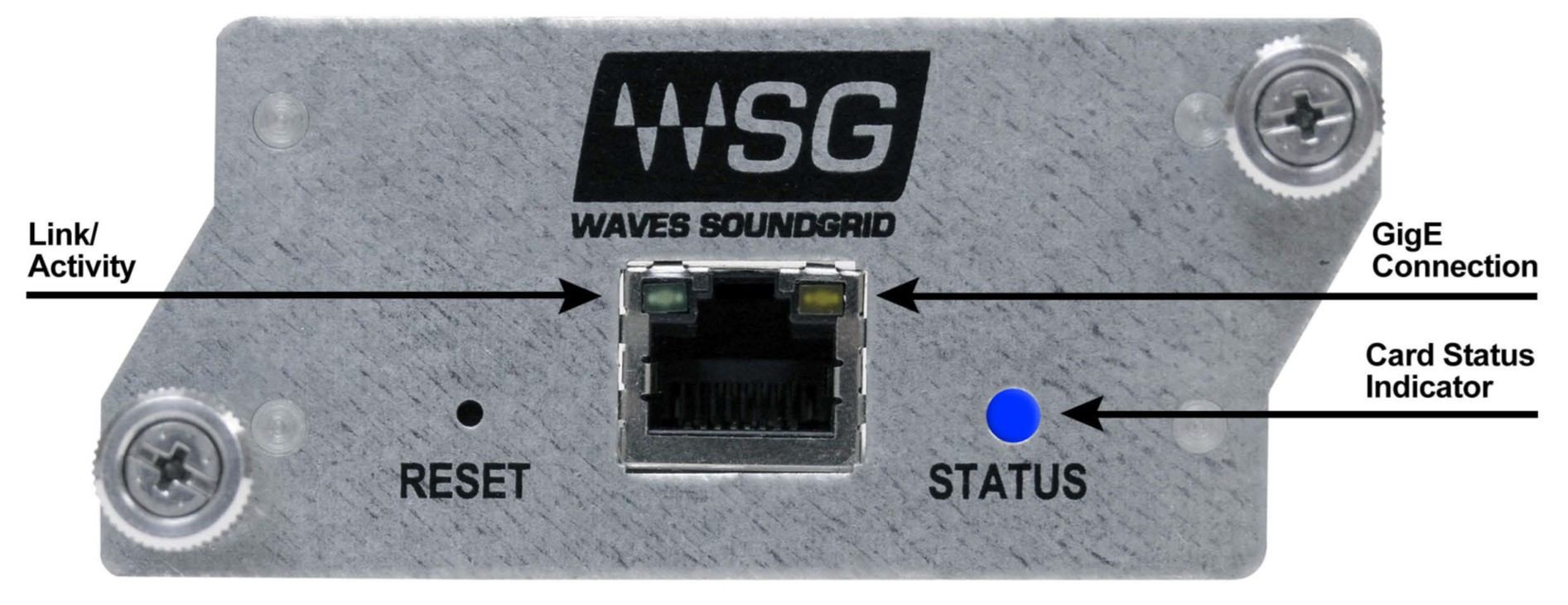
There are two LEDs on the port itself, and a third LED to the right of it.
The two LEDs on the port itself indicate network status:
Link/Activity:
Flashing GREEN
GigE Connection
Solid ORANGE
The LED to the right of the port ("STATUS") indicates card status:
BLUE:
Card is recognized by the SoundGrid network.
RED:
Card is not recognized by the SoundGrid network.
YELLOW:
During Update - Card is updating properly
Other Conditions - Firmware did not load properly, or the unit did not boot properly.
Cycling Colors:
The LED can be used to identify the card from the control panel. The ID button on the SoundGrid device rack activates the card status LED. When the ID button is pressed, the card status LED changes colors repeatedly to help identify the card.
Reset
If, after an unsuccessful firmware update, the Hear Back PRO SoundGrid Card is not recognized by MultiRack or SoundGrid Studio (that is, the device does not appear in the inventory panel), you can use the Reset button to try to recover the unit. The Reset button is on the front panel of the Hear Back PRO SoundGrid Card. Follow these steps:
- Turn off the unit.
- Press and hold the Reset button.
- Restart the unit while holding the button.
- Release the Reset button once the device has fully booted.
The unit is now in "force update" mode, and a new firmware update can be performed.
Installation and Configuration
The ASIO/Core Audio drivers and control panel for the Hear Back PRO SoundGrid Card interface—as well as most other Waves products—are installed using the Waves Central application. When you download the drivers and interface, Waves Central also installs the latest version of the SoundGrid driver and the SoundGrid Studio Application, which are required for DAW recording and playback.
Download Waves Central here: www.waves.com/downloads/central
Configuring the SoundGrid Card in MultiRack SoundGrid
Access the Hear Back PRO SoundGrid Card control panel from the Inventory window in the MultiRack SoundGrid application.
- Launch the MultiRack SoundGrid application.
- Enter the Preferences window by typing Ctrl+P (Windows) or Cmd+, [comma] (Mac), or from the appropriate application menu.
- Under Local LAN Port, choose the adapter connected to the SoundGrid network and the Hear Back PRO SoundGrid Card. Network adapters are displayed as MAC addresses and port names.
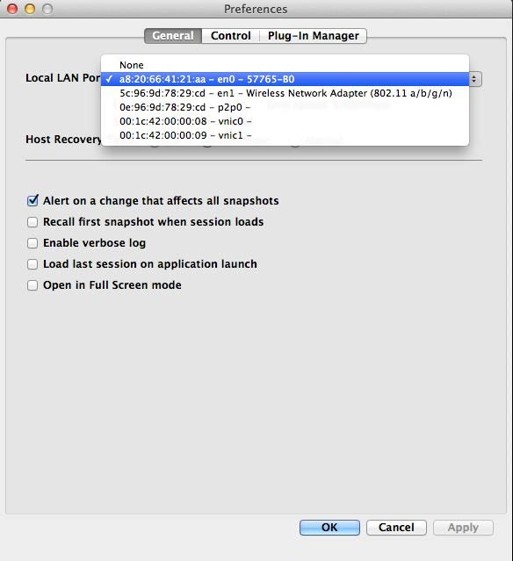
- When you select the correct port, the message "SoundGrid Network Found" will appear on the panel. Close this window.
- Open the SoundGrid Inventory window from the Audio Menu (F2). The SoundGrid Inventory window displays all SoundGrid I/O devices connected to your network.
- Assign SoundGrid drivers in the Assign column. Use consecutive numbers for multiple devices, with the first unit assigned as number 1.
- Assign SoundGrid DSP servers in the Assign column. The primary SoundGrid DSP server will be assigned as number 1. If you are using a redundant SoundGrid DSP server, assign it as number 2.
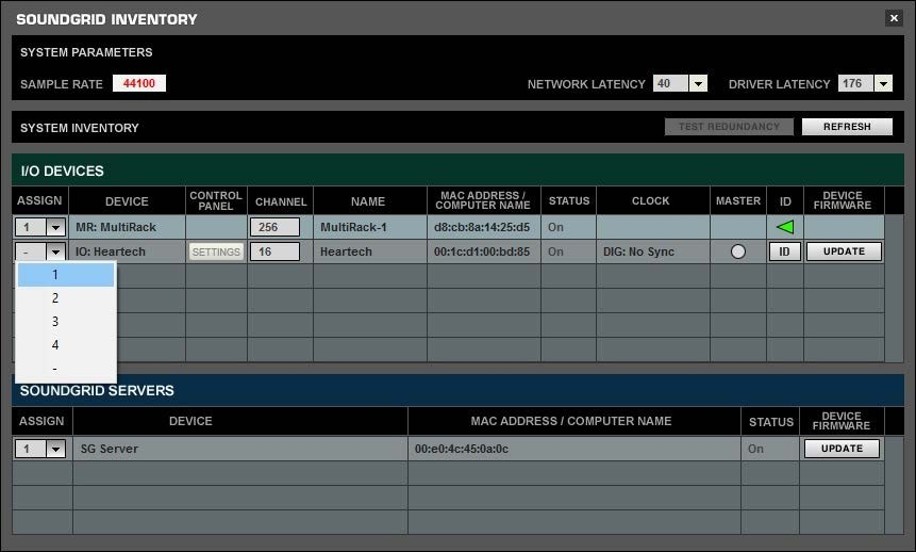
- Assign your Hear Back PRO SoundGrid Card card(s) in the Assign column. Use consecutive numbers for multiple devices, with the first unit assigned as number 1.
- Click Settings to open the Hear Back PRO SoundGrid Card Control Panel window.
Configuring the SoundGrid Card in SoundGrid Studio
This is a quick overview of what you need to know about SoundGrid Studio software to get your network up to speed. There's enough information here for you to configure a simple network, assess network status, and set up your I/O devices. For more complex configurations, please refer to the MultiRack SoundGrid and SoundGrid Studio user guides.
Setting up SoundGrid Studio
The SoundGrid Studio Application oversees the SoundGrid network and manages all network devices. To maintain network effectiveness, the SoundGrid Studio Application is always running in the background. Bring SoundGrid Studio to the front by clicking on the SoundGrid icon (SG) in the Mac Top Bar or the Windows System Tray. Select a SoundGrid window from the drop-down menu.
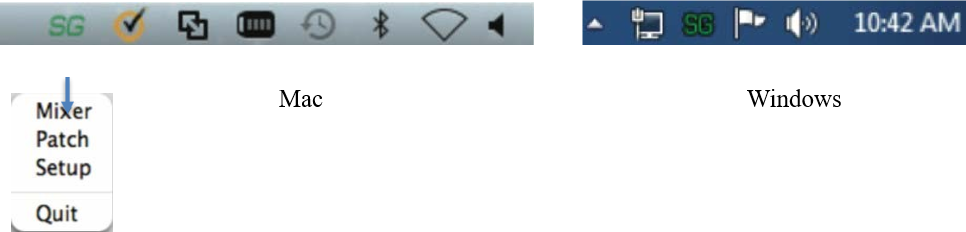
When SoundGrid Studio opens you will see the System Inventory page, which is part of the Setup window.
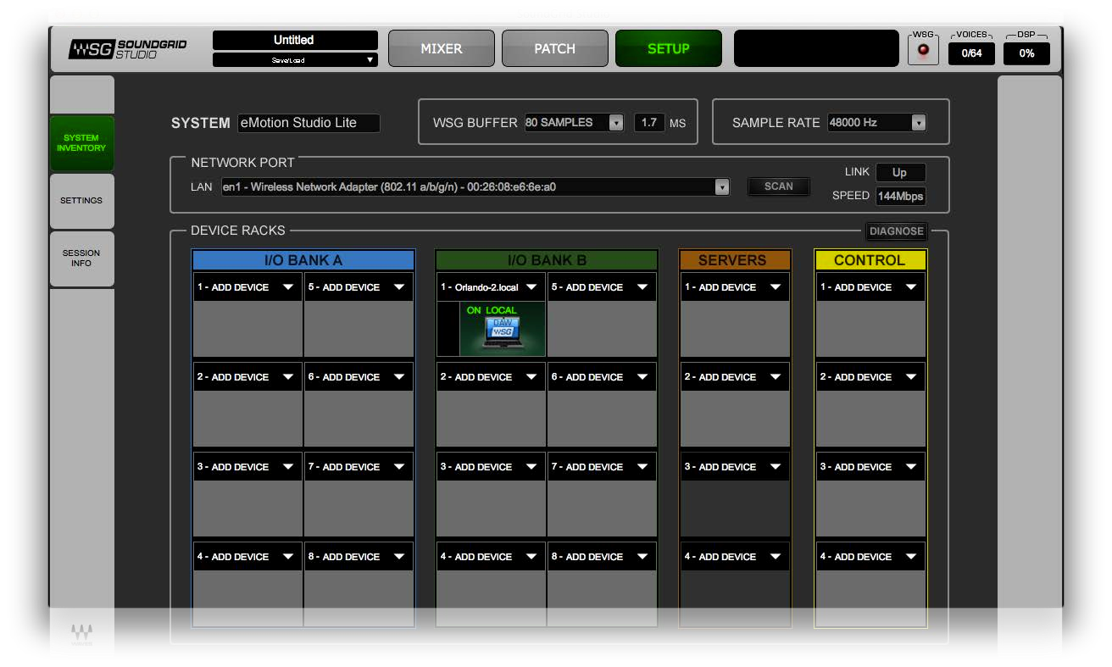
The first time you launch SoundGrid Studio, the Wizard will open. It scans the network, inventories its assets, and then configures the devices. If the Wizard does not start automatically, click the "Auto Config Start" button, which is next to the Network Port. Choose "NEXT" to start automatic configuration. This will take a few moments. Choose "CANCEL" to configure manually.

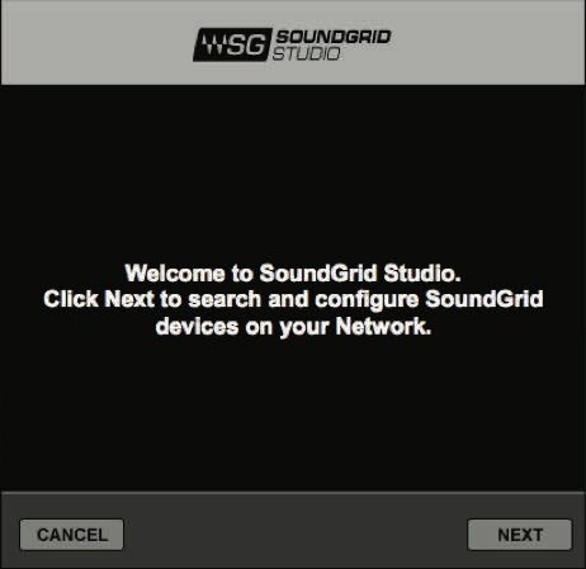
If the Wizard cannot locate the requested SoundGrid network devices, this may mean that the devices might be off or are not connected properly. In such a case the Wizard will allow you to rescan the network or work as a Driver node slaved to another system. For more information please refer the SoundGrid Studio User Guide.
When configuration is complete, close the window. If there's still a problem, you can use the System Inventory page to assign devices, control the network, and manage clock. To learn how to use this page, please refer to the SoundGrid Studio Application user guide.
SoundGrid Studio uses Ethernet to stream audio between devices on a SoundGrid network. Clock synchronization is also carried over Ethernet. This method of providing clock is called Sync over Ethernet (SoE). SoundGrid I/O devices can clock by other means as well, but SoE is by far the most common (and convenient) way to provide clock information to network devices.
In the SoundGrid Studio Setup page you will see racks containing all of the devices assigned to your system: physical and virtual I/O devices, drivers, and servers. Each I/O rack slot displays the device's mode, clock status, and sample rate.
The first device added to a rack is designated as the Sync-over-Ethernet clock master and is placed in the first rack slot.
A populated device slot displays the mode, clock status, and sample rate of the I/O. The clock master device is indicated by its blue color and the icon text: On, Master Clock, INT (48 kHz).
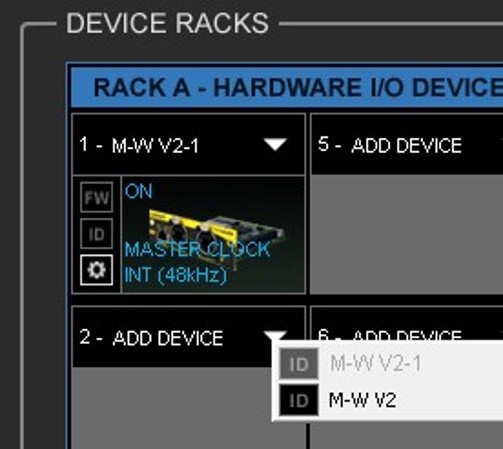
To add another SoundGrid device, click on the arrow in an empty rack slot. From the list of available devices, choose the one that you want to add—in this example, an M-Waves card. In this image, the first I/O device is grayed out (and therefore unavailable), since it is already claimed.
The new device is visible in the rack slot. Unless changed by the user, it remains the clock slave and is colored green.
Use the same menu to change the assignment of clock master from one device to another, or to remove the device from the rack slot.
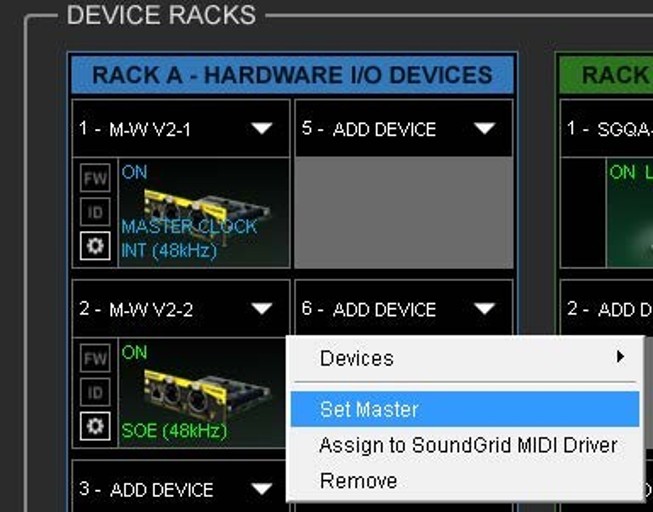
Now you know how to assign I/O devices and designate a device as the clock master. Click on the Gear symbol in the device slot to open the Hear Back PRO SoundGrid Card control panel in order to set up clock details and configure preamps.
Firmware Status and Updates
On the left of the device icon are two buttons:
FW indicates the status of the device's firmware. The user is given the choice to update it. Status indications are color-coded:
GRAY
Compatible firmware
BLUE
Compatible firmware, but a newer version exists
RED
Firmware not compatible and must be updated in order to use
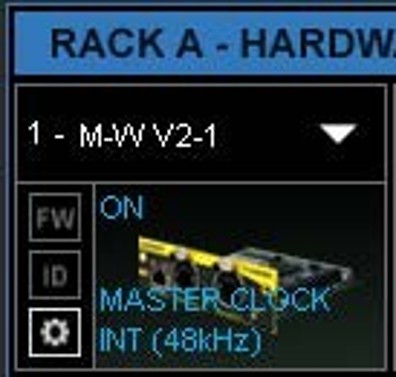
Click on the FW button to launch the Reflasher. This will initiate a scan of the hardware and then offer options. Do not disconnect device or turn off your computer until you see "Done".
When the ID button on the SoundGrid device rack is pressed, the status LED on the card's front panel change colors repeatedly to help identify the device.
Hear Back PRO SoundGrid Card Control Panel
If you are working with MultiRack SoundGrid, access the Hear Back PRO SoundGrid Card Control Panel via the Inventory window.
If you're you are using SoundGrid Studio, click on the Gear symbol in the device slot to open the Hear Back PRO SoundGrid Card Control Panel.
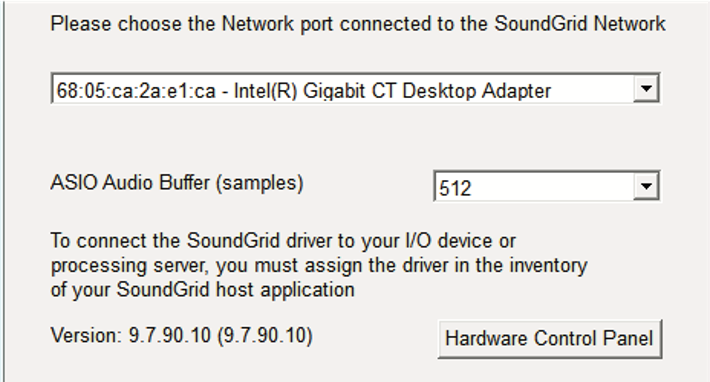
Pressing the "Hardware Control Panel" button on the Driver Control Panel app will open the control panels of all I/O devices assigned to your SoundGrid application. If none are assigned, nothing will happen.
The Driver Control Panel app is located here:
PC:
C:\Program Files (x86)\Waves\SoundGrid\Driver Control Panel
Mac:
System HD/Applications/Waves/SoundGrid
Clock Page
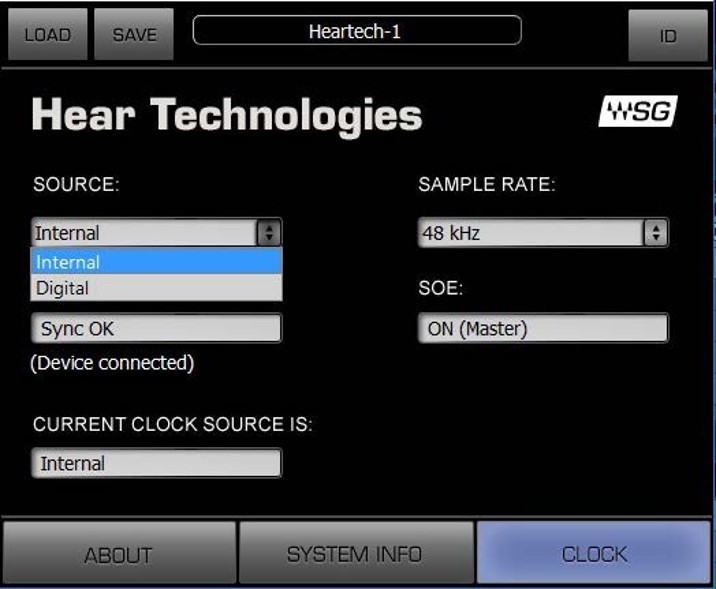
When you launch the Hear Back PRO SoundGrid Card control panel, it loads the Clock Settings tab. The following settings are available here:
SOURCE sets the clock source.
Internal
The interface itself provides the clock.
Digital
Syncs via the Hear Back PRO SoundGrid Card connection to the personal monitor mixer.
Sync-over-Ethernet
Syncs to the master I/O of the SoundGrid network.
SAMPLE RATE sets the sample rate when Clock Source is set to Internal.
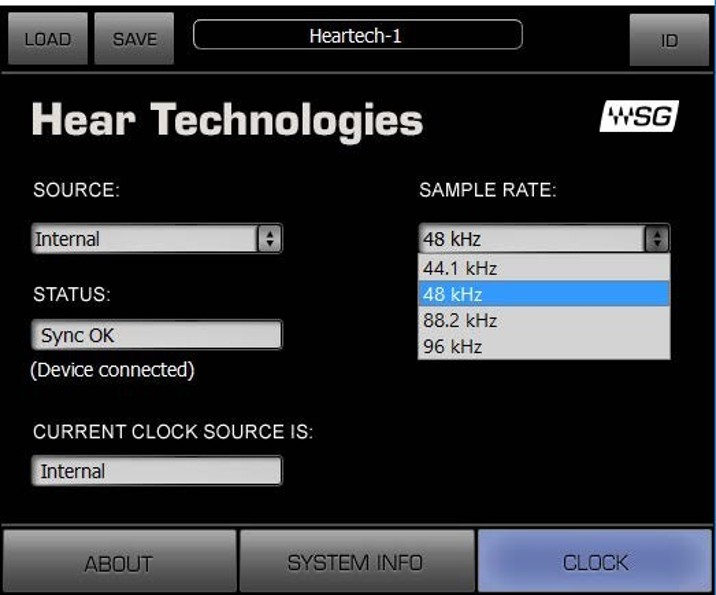
STATUS displays synchronization status (Sync or No Sync).
CURRENT CLOCK SOURCE IS displays the current sync method.
SOE displays Sync-over-Ethernet status (On or Off).
LOAD and SAVE (at the top left corner of the control panel window) allow you to save and load your Hear Back PRO SoundGrid Card settings.
About Page
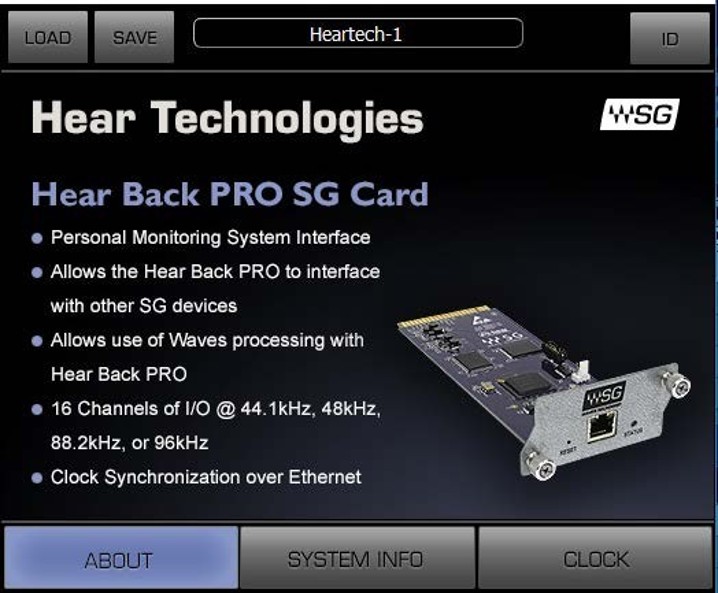
The About page displays an overview of the device's specifications.
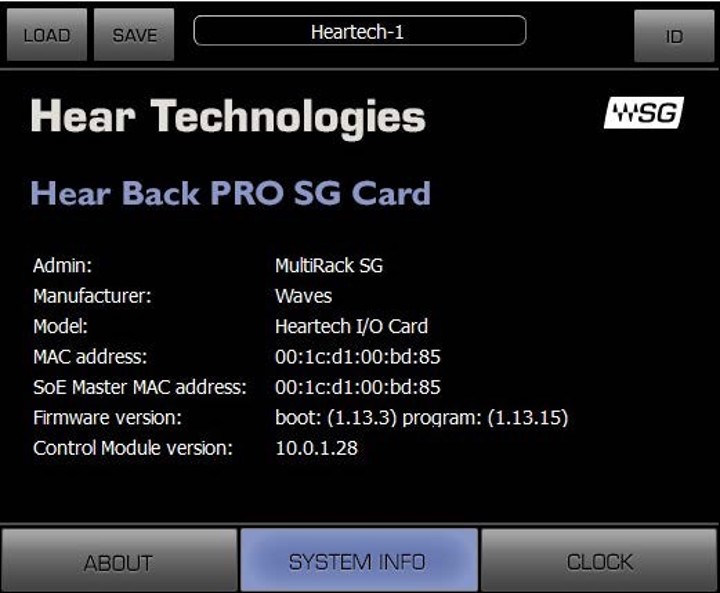
System Info Page
The System Info page displays the device's connection status, manufacturer, model, MAC and SoE Master MAC addresses, and firmware version.
Saving, Loading, and identifying
LOAD and SAVE (at the top left corner of the Control Panel window) allow you to save and load your Hear Back PRO SoundGrid Card settings.
IDENTIFY (at the top right corner of the Control Panel window) allows you to identify connected devices. When the ID button on the SoundGrid device rack is pressed, the status LED on the card's front panel change colors repeatedly to help identify the device.